Microsoft SharePoint in 2021

SharePoint Success Site

The SharePoint Success site is a new look book template from Microsoft that builds upon other sites such as the Microsoft 365 Learning Pathways. It is designed to help organisations that are looking to rollout SharePoint improve the quality and impact of the sites they are designing.
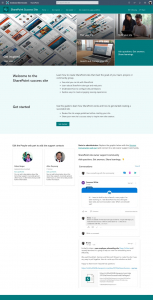
SharePoint Success Site

Here you can get a free SharePoint Success template.

We can help deploy this as part of our SharePoint Intranet and Consulting Services.

SharePoint Home Site App – Teams

This will provide organisations greater integration with SharePoint from Microsoft Teams. This will also remove the issue with the global navigation not appearing within Teams which has been a major limitation. This will involve promoting a communication site to a home site for this functionality to work.

Microsoft Teams Home App

More details on this announcement can be found on the Microsoft Tech Community Blog.

SharePoint Spaces

Launched at the end of 2020 but will be improved over the coming year. This platform will provide organisations the opportunity to provide mixed reality experiences in Modern SharePoint Sites. This could be for virtual tours, training, classroom or providing a creative way to demonstrate products and services.

Get more details on SharePoint Spaces.

SharePoint Syntex

This new product set is an enterprise product set designed to provide Machine Learning and AI to assist with automated classification and protection of content within SharePoint.

This product set will streamline organisations that are manually manipulating and classifying data and metadata or using a third-party product to achieve this.

SharePoint Syntex | Microsoft 365

SharePoint News Improvements

News / Publishing

Improvements to the News & SharePoint panel asking users to complete missing fields prior to publishing and allowing for further automations with Power Automate once complete.

New template functionality is also being included with the ability to set a new default news/page template for sites.

News Digest Improvements

Auto News Digest – Building upon the manual News Digest functionality this feature will automatically email organisations with updates to the news articles that have been posted within SharePoint.

News Banner and Logo improvements are also being added to the News Digest functionality to allow further customisation to this. Much simpler than emailing yourself the News Digest and editing it first! See User Voice on this subject.

OneDrive

Mac Improvements

A host of new features are coming for Macs on OneDrive including:

  • SSO & Conditional Access for OneDrive on Mac
  • Files on Demand is coming out of beta and becoming GA

Differential Sync

This feature will streamline the amount of data that is being synced and will allow for differential sync for all file types.

Comments on non-office documents

Within SharePoint & Teams web application you can now provide comments to non-Office files from OneDrive. This is already launched and you can read more on how to use this.

OneDrive Comments

Microsoft Teams in 2021

There is a host of new features coming to Microsoft Teams this coming year as Microsoft invests heavily into the new platform. Just a selection of these include:

Teams Custom Layouts

This will build on the blur and change background features to allow users to create more immersive presentations with themselves transposed into the scene.

Microsoft Teams Custom Layouts

Meeting Recap

A very exciting feature that will provide a lot of productivity gains allowing a summary of the meeting, who attended, who did not and shared files, recordings and chat. This will also include automated actions in the future too.

Enhanced Integrations

Enhanced integrations with the PowerApps Power Platform and SharePoint:

  • Approvals
  • Power Automate App
  • Power BI

More Details

You can see What’s New in Microsoft Teams from Microsoft’s announcement page.

EndPoint

Microsoft Defender provides New Features for centralised management of Microsoft Defender included with your Microsoft 365 Business Premium plan.

Get in Touch – We can help with your 2021 Projects.

Valto are here to help with your 2021 projects. Get in touch via 03335 779 009, [email protected] or Contact Us.
Our Microsoft 365 Masterclass Series is a new webinar series from Valto. Our series aims to help organisations get the most out of their subscriptions including planning a Microsoft 365 Strategy, adoption the platform, improving security and a dive into key technologies.

The first event in our Microsoft 365 Masterclass series is “Planning a Microsoft 365 Strategy” and how you can create an effective plan for the next 12-36 months.

365 Strategy Planning Webinar Video

Key Topics – Defining an effective Microsoft 365 Roadmap

The important considerations when defining a roadmap and strategy are as follows:

  • Governance – Key areas to define governance policies including defining SharePoint & Teams structures and limiting key settings that make governance difficult to enforce.
  • Adoption – Defining an effective adoption strategy including communication, training, champions and resources.
  • Security – Implementing an effective baseline of security for Microsoft 365 and rolling this out across your Microsoft 365 platform allowing additional services to easily be enabled.
  • Migration – Best practices for migration of files from legacy platforms to Office 365 Services.

Generally, as part of any Microsoft 365 planning you need to consider the toolsets that are available, we often break these down into two categories

Productivity Tools

Productivity tools enable users to get the most out of the platform and provide productivity benefits and functionality to streamline the user’s way of working including:

Security Tools

Security tools ensure the Microsoft 365 is secure and aligned to the objectives and company policies including:

  • Enterprise Mobility & Security
  • Conditional Access
  • Azure AD
  • InTune
  • Azure Information Protection
  • Advanced Threat Protection

Get in Touch – Start your Microsoft 365 Master Plan with Valto

All of the products outlined above our included in a Microsoft 365 Business Premium license. Valto are here to help with your Microsoft 365 Strategy Planning. Get in touch via 03335 779 009, [email protected] or Contact Us.

Microsoft Office 365 Security is one of the main concerns when organisations consider moving their data to the cloud. With new threats emerging on a regular basis, organisations must use the tools at their disposal to lock down and secure their data. Microsoft Office 365 is considered a very a secure platform when configured correctly by an administrator. This article outlines 10 security features available to organisations using Microsoft 365. For more information on Microsoft security visit our service options for office365 enterprise mobility security (EMS), Microsoft 365 security and compliance or Microsoft Office365 hacking prevention.

Securing Microsoft 365 Video

1. Activate Multi Factor Authentication

Multifactor factor authentication requires more than just a username and password from a user when they try to log into office 365. It’s one of the most effective ways off securing your account. When activated, users logging in will have to type in a code sent to their mobile phone or respond to a notification using a free Microsoft app. This prevents attackers from gaining access to your account even if they have the password.

2. Use dedicated Admin accounts

Admins should have a separate standard user account for everyday non-administrative tasks. Office 365 Administrator accounts have elevated privileges making them targets for hackers. Admins should only sign into these accounts when performing administrative duties. This reduces the attack vector if accounts are compromised.

3. Disable Auto-Forwarding of email

If an attacker gains access to a user’s mailbox they may automatically forward all mail to an external address without the user knowing. Using mail transport rules admins can prevent auto-forwarding being enabled on user mailboxes.

4. Protect against malicious email attachments with ATP

ATP Safe attachments is part of Office 365 Advanced Threat Protection. Its function is to protect users from malicious email attachments such as ransomware and viruses. All attachments are scanned and executed in Microsoft “sandbox” environment to determine if the attachment performs any malicious actions. Files deemed safe are re-attached to the message and delivered to the recipient’s mailbox.

5. Protect against phishing attacks with ATP Safe Links

ATP Safe links is part of Office 365 Advanced Threat Protection. Its function is to protect users from malicious links sent within emails. Administrators should configure policies to enable time-of-click verification on URLs within emails and office documents.

6. Enable Mailbox Auditing

Customers who procured Office 365 before January 2019 won’t have mailbox auditing enabled by default. Administrators should check if auditing is in place and enable if not. Once activated mailbox auditing allows you to track actions that users take within their own and other users mailboxes.

7. Use Role Based Access Control

Using Role Based Access Control within Office 365 gives administrators the ability to assign roles to users to allow them to carry out specific actions whilst denying others. An example would be allocating the billing administrator role to a member of finance to allow them to access billing only within office 365. This prevents Global Admin roles being assigned to users giving them more permissions than they need. RBAC provides a more distinct level of administration given the large number of products and applications with Office 365.

8. Lock down SharePoint and OneDrive sharing

By default, users in Office 365 can share documents and files outside the organisation with external users. Administrators should review their organisational policies to lockdown down sharing to specific sites to reduce risk of data leakage. SharePoint sites with public information could be enabled for external sharing with expiration on links. Sharing can also be locked down to trusted domains only.

9. Email Alerts

Alerts is a feature in the Office 365 security & compliance centre. Administrators should configure and enables alerts to prompt for suspicious or abnormal activity. Once Alerted Administrators can investigate issues that could be potentially problematic. Examples could include large volumes of data being deleted from SharePoint sites.

10. Use Microsoft Secure Score

Microsoft Secure score is an analytics tool providing a numerical value of an organisation’s current security status within Office 365. The score is presented on a dashboard and is based on the current configuration, users’ actions, and other security measurements within Office 365. Administrators should follow and implement the recommended list of actions on the portal. Each action addressed will increase the security score and reduce the overall threat to your office 365 environment.

Speak to a Microsoft Security Expert

All of the products outlined above our included in a Microsoft 365 Business Premium license. Valto are here to help with your Microsoft 365 platform. Get in touch via 03335 779 009, [email protected] or Contact Us.

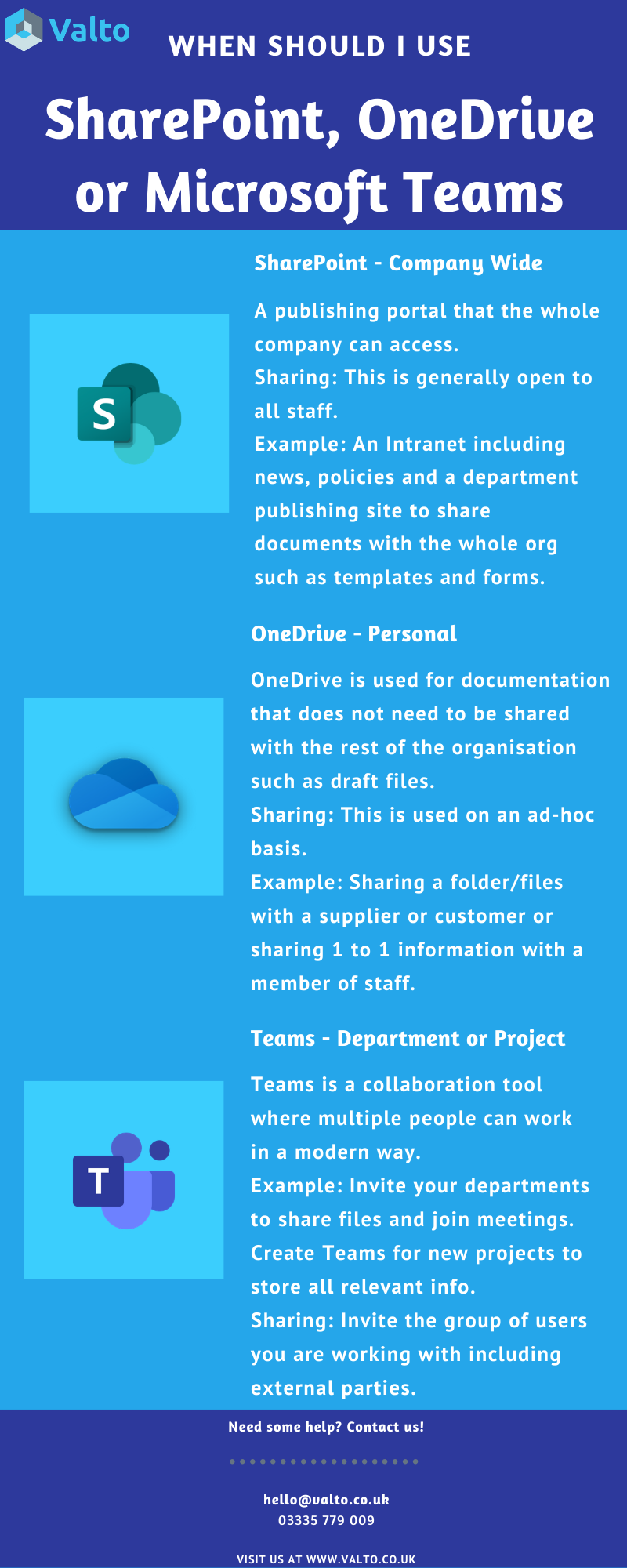
Microsoft 365 has a number of tools available that can be used for storing information, files and collaborating on. A common decision for organisations when building their Microsoft 365 strategy is identifying the best use case for each of the products. Our blog article covers off the key products and use cases for each one.

SharePoint, OneDrive & Microsoft Teams are key components of Microsoft 365 and are included in your Microsoft 365 Business Premium licenses.

Which tool should I be using?

When should I use SharePoint, OneDrive or Microsoft Teams?

Microsoft 365Services

Valto provide a range of SharePoint, OneDrive & Microsoft Teams services including:

  • Migration
  • Governance Planning
  • Managed Support
  • SharePoint Intranet Development
  • Adoption

Blog Series

This blog post is part of a series of blog posts outlining Microsoft Teams best practices including:

Get in Touch

Valto are here to help with your Microsoft Teams platform. Get in touch via 03335 779 009, [email protected] or Contact Us.