We’ve been deploying Microsoft Teams since its inception for a range of clients from SMEs to Enterprise and developing a set of Microsoft Teams Best Practices that can help your organisation with Microsoft Teams implementation. We have also launched a detailed Microsoft Teams Governance Whitepaper for free. For now though, check out our Microsoft Teams Best Practices Top 10 Tips.
Microsoft Teams Best Practices Tip #1 – Replacing SharePoint Team Sites
For organisations that are ready to start with Teams straight away and are embarking on a SharePoint Project the default deployment is to create Microsoft Teams for the users within each team or department. This provides all the functionality of SharePoint and the enhanced capabilities of Microsoft Teams. As part of the build and architecture we scope out the required teams and deploy these as part of the roll out. We help organisations adopt a proven governance and control plan for the deployment of Teams. Look out for our Microsoft Teams Governance White Paper due to launch soon.
Microsoft Teams Best Practices Tip #2 – Naming Standards
One of the challenges when rolling out Microsoft Teams in a larger organisation is the creation of a Team also creates an Office 365 Group which requires an email associated with it. Many organisations already have group email accounts such as Finance, Sales, etc. so when creating a Microsoft Team these may conflict with the group. Having many email accounts with similar names can also cause confusing. We recommend that a prefix or suffix be appended to the creation of all Microsoft Teams for example Finance could become Finance Team and Sales would become Sales Team. This naming standard will prevent issues and confusion with similar sounding email accounts and ensure that finding these teams later will be much easier.

Microsoft Teams Best Practices Tip #3 – SharePoint Intranet Hub Sites Configuration
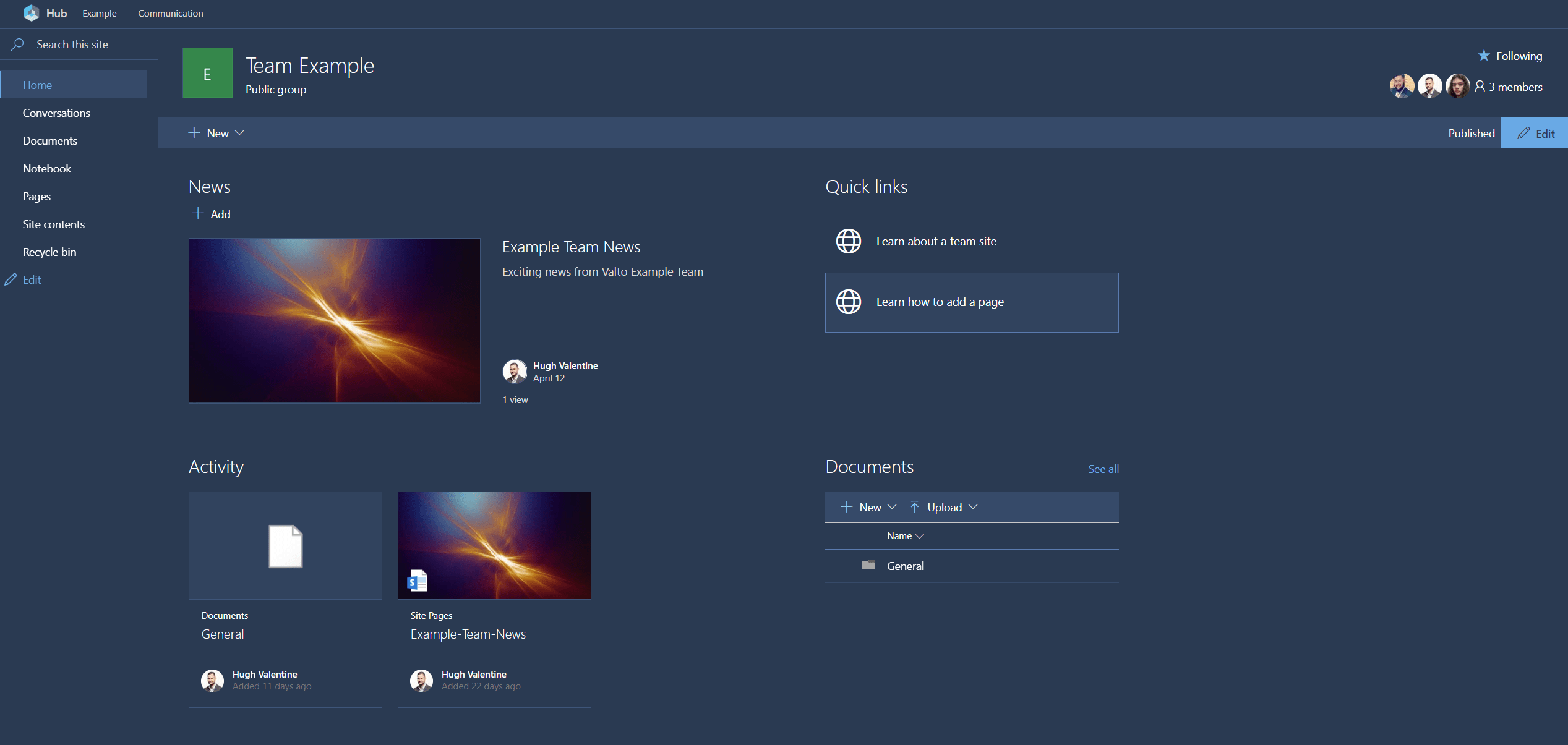
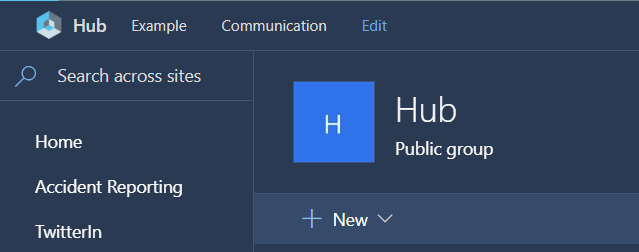
Teams are very easy to navigate and find within the Teams Client and Web however there are still many organisations that rely on SharePoint as an intranet or central access point. Every Microsoft Team by default creates a SharePoint Site that is associated with it. Its important that while users can easily use Microsoft Teams that users can still access this through SharePoint. With the new hub sites its possible to create a central hub site and link the existing Microsoft Team SharePoint sites to this hub site. Hub sites provide users a central area with consistent navigation and branding as covered in our previous post on this.
Microsoft Teams Best Practices Tip #4 – Managing Teams
Defining and creating the architecture design for Microsoft Teams is an important factor in success and adoption. Many users we’ve worked with have highlighted issues where they are unsure which Microsoft Team they should be using especially when users have created multiple teams for their department or group. However, the power of Microsoft Teams is still the ability for users to create a Team where they feel this would be worthwhile or there is a gap currently. By defining a simple structure that covers all of the base teams, any externally shared teams if required and by creating a centralised SharePoint site that is easy to navigate and training the users on this will simplify the experience.
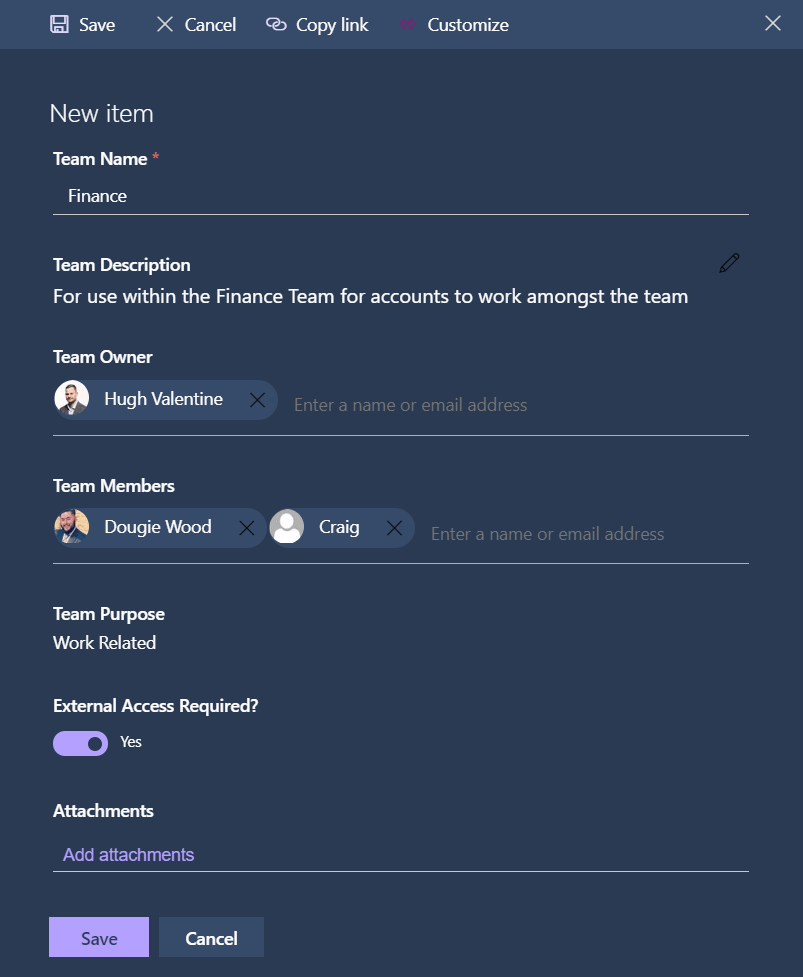
Some organisations with this in place are then happy for users to create Microsoft Teams on an ad-hoc basis without any approval process however for many of our enterprise organisations a key control is having an approval step prior to a Microsoft Team creation. We have created an automated system using Microsoft Flow and SharePoint that can simplify the Microsoft Teams request process.
Microsoft Teams Best Practices Tip #5 – Chatting Thread/Replies
Within Microsoft Teams a key step for user training is the ability to have threaded conversations. Its often a step that is missed from the users training and adoption that can vastly improve the user experience. Threads allow for users to contain all of their conversations around particular topic within one area and allow for users to reply and keep everything contained. It’s a simple but overlooked step in our training process that improves the overall user experience of Microsoft Teams.

Microsoft Teams Best Practices Tip #6 – Fun Stuff
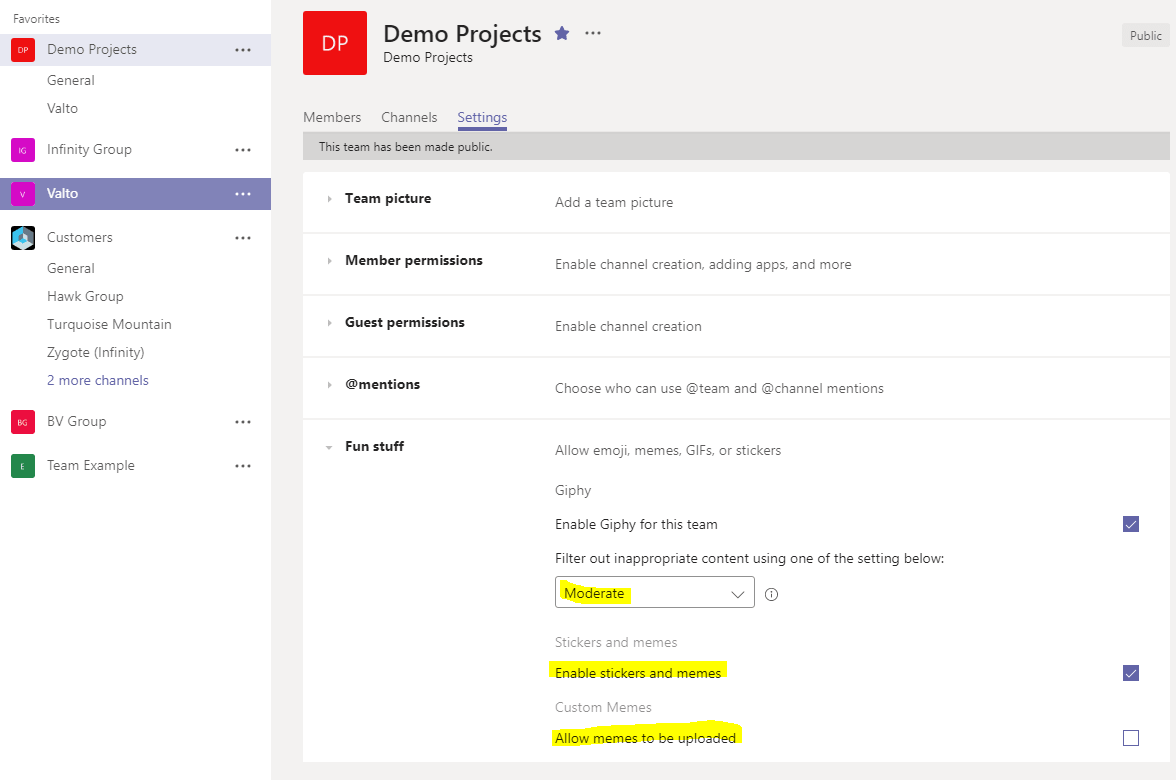
Depending on your organisation there are a number of settings that can be enabled or disabled these include the options for disabling emojis, memes, GIFS and stickers and increasing the strictness of the GIF searching within the platform. Many organisations may enjoy the fun components of Microsoft Teams whereas other organisations may find these are inappropriate for their workplace. Working with the management teams in the organisation to understand what is an acceptable level and tweaking these settings is another key step in the adoption and removal of a potential barrier to utilising Microsoft Teams in the business.
Microsoft Teams Best Practices Tip #7 – External Sharing
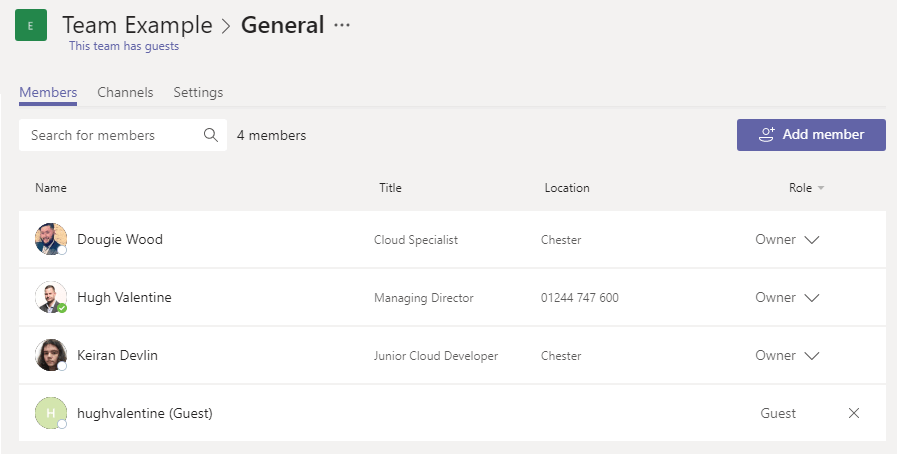
If your organisation is using Teams successfully and would like to involve other organisations such as clients or partners then enabling the guest functionality for Microsoft Teams. Again, this should refer to your Microsoft Teams, Office365 & SharePoint Architecture design as to which Teams will be shared externally and any naming standards they might follow. External Sharing can be a fantastic way of integrating your clients and suppliers into your organisation and streamline your processes and flows with them, it can also show that you are leading the way with technology and impress the people you are working with. We’d recommend that as an organisation you get used to using Teams internally and then trial the external sharing before rolling out across the organisation.
Microsoft Teams Best Practices Tip #8 – Automatic Bots & Posts
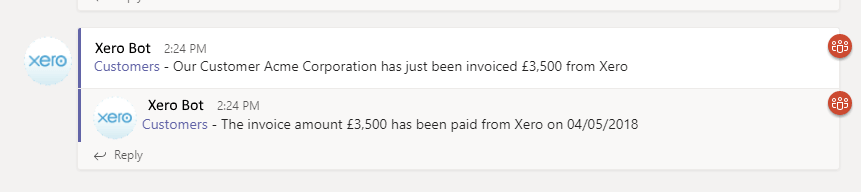
Microsoft Teams is all about sharing information and collaborating better. We’ve found great success with organisations by identifying automated points where sending information to a Team is very useful. An example of this would be when invoices are sent or paid from applications such as Xero or Sage that they automatically notify all of the relevant people. We have configured an automation that posts in our Customers Team when an invoice has been paid or becomes overdue. Identify where your teams get asked many of the same questions and see if a Bot or Flow can be created to automatically provide the information to the relevant Team.
Microsoft Teams Best Practices Tip #9 – Tabs
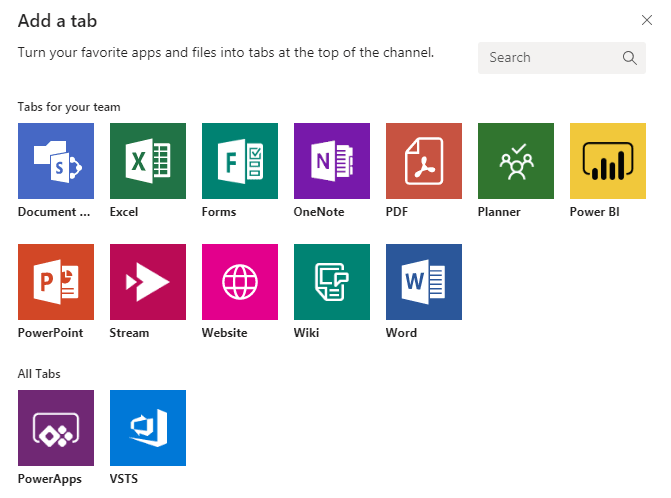
Microsoft Teams can be extended even further by including any tabs for other applications you might use and become a one stop shop application for your organisations Team. Include relevant 3rd Part Web Applications, Planner, a Wiki, PowerBI or any other tab that would be useful for your Team and provide a centralised area for all users.
Microsoft Teams Best Practices Tip #10 – Additional Resources
Finally, our last tip on the Microsoft Teams Best Practices is additional resources that will kick start your Microsoft Teams project!
- Microsoft Guidance for getting started, improving adoption, training and more – http://www.successwithteams.com/
- Microsoft Documentation on Microsoft Teams Best Practices – https://docs.microsoft.com/en-us/microsoftteams/best-practices-organizing
Talk to us about getting the most out of Microsoft Teams
Our Microsoft Teams Best Practices are constantly evolving, and we’ll update this post regularly with any new tips. If you’re interested in architecting your Microsoft Teams with Best practices from the get-go call now on 03335 779 009 or Contact Us and chat with one of our Microsoft Teams specialists.
Microsoft Flow is a Microsoft Office365 product that allow members of your organisation to create and automate workflows across multiple applications. These automated workflows are called “Flows”.
Flows can be created from scratch through a simplistic drag and drop interface without the need to know how to write code. You can also choose from hundreds of templates to get you started creating your own Flow logic.
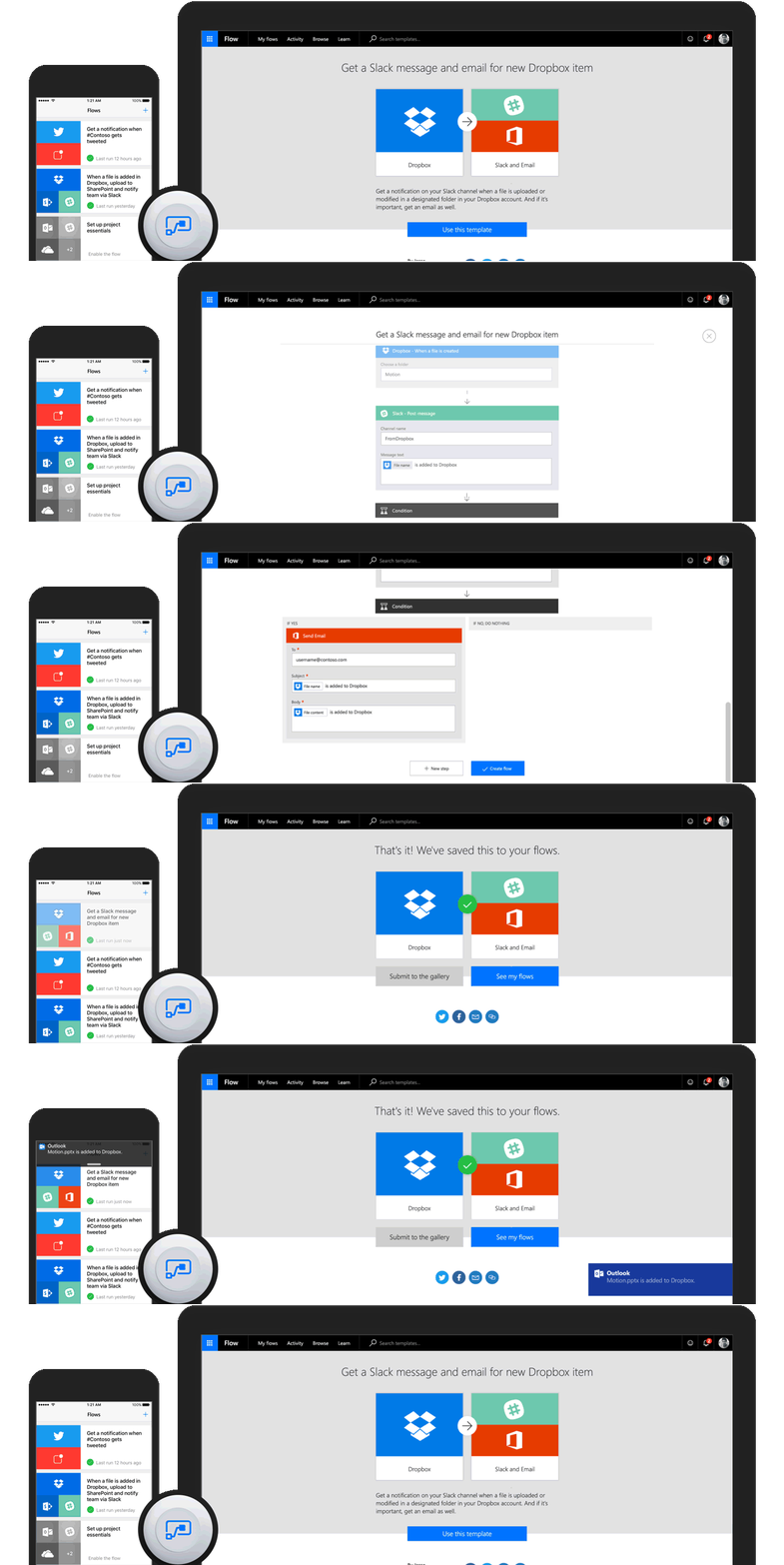
Flows are most commonly used to trigger notifications or automate tasks your employees may be carrying out manually. For example, if an email was received in the accounts team shared mailbox with the subject containing “Purchase Order” you might have a flow store the email and attachments directly into a SharePoint folder then email a notification to the sales manager.
Amongst the thousands of possibilities, here is some examples of automation using Flow:
- Request Manager Approval on Document
- Get mobile push notification when receive email from VIP
- Get daily weather reports delivered to email and phone
- Track Facebook wall messages in an Excel Sheet or SharePoint List
- Save Comments on Instagram posts to Excel Sheet or SharePoint List
In this blog article we will demonstrate how to harvest all tweets from Twitter that contain a certain #HashTag.
At Valto we work on many projects with Marketing and Communication departments from a wide range of organisations. A common issue we come across is these departments having a lot of “manual” processes for gathering data about what their customers are saying about them on social media platforms such as Twitter, Facebook and Linkedin.
Knowing what customers are saying about your organisation in a public platform is vital for several reasons. It will let you know what your customers are happy about, but more likely they will make known what they are unhappy about. The most popular platform for sharing feedback about a good/bad experience of a business is Twitter.
This article will show you how you can harvest all tweets that contain keywords or # related to your organisation and then store them inside a SharePoint Online list.
- Create a list inside your SharePoint Online intranet.
- Create the following fields:

- Click on the “Flow” tab on the ribbon and select “Create Flow”
- On the template selection pane on the right-hand side, scroll down to “Save tweets that include a specific hashtag to a SharePoint list”

- You will need to make sure Flow is connected to your SharePoint site and twitter account. Then click continue.
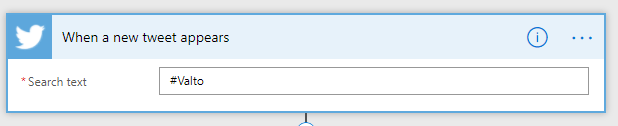
- You will then see the flow editing screen. First enter the search text you want to use to find tweets you wish to Harvest. In this example we have chosen to find any tweets that contain the hashtag “#Valto”. This will work for any word with or without a hashtag.
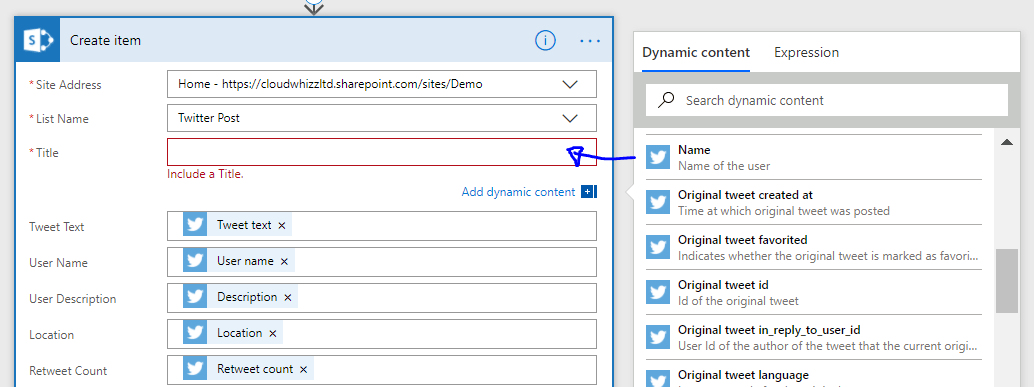
- Next select the content that will populate each field as shown below:
- Click Save Flow at the bottom of the screen then Done at the top of the screen. This will have now published your Flow.
- Now from any twitter account post a tweet containing you chosen search word for example “#Valto”

- Go back to your SharePoint list and within a few minutes you will see the post appear.

This process could be expanded to include notifications to members of your organisation, so they can react quickly to tweets containing explicit or negative wording for example.
There are many other twitter attributes of the tweets we have harvested we could also include in our SharePoint list for analysis afterwards such as:
- How many tweets that user has favourite previously
- How many people the user followers
- How many friends the user has on twitter
- What native language the user speaks
- How many tweets that user has made in the past
All this information can start building a picture of the demographic of the users that has tweeted. For example, using this in analysis you could determine if this tweet is in fact from a genuine user account or perhaps it is a spoof account from a competitor.
If you have any business processes that you feel could be streamlined or made completely automated, please get in touch.
Author
 |
Dougie Wood SharePoint Specialist |
| T: 03335 779 009 E: [email protected] W: https://valto.stg.upliftcro.co |
|
| 10 Watergate Row, Chester. CH1 2LD |
When speaking with new clients, we often find that although they are paying for Office365 for some or all their employees yet not taking full advantage of everything Office365 has to offer. On average most businesses are only benefiting from around 40% of what the Office365 suite of products has to offer.
This article aims to give you top tips for getting the most value from your Office365 subscription and outline some key functionality you may not be aware of.
1. Compliance – GDPR Policies
25th of May 2018 is the official date when all businesses must be GDPR complaint. This is proving troublesome for organisations as they must completely re-think how to categorise their data in accordance to the rules and regulations to ensure their business is complaint.
What you may not be aware of is the Security and Compliance features that Office365 has built into it to assist you in categorising and applying automated rules to data you have stored inside of Office365 to ease this process.
A great example of this is “Labelling” data and then applying automated actions based on that label. It is possible to create multiple Label types and in our example below we have created a “Personal Data” label that we wish to apply to specific documents within SharePoint Online.
First, we create our label within the Office365 Admin Centre and document what the label shall be used for.
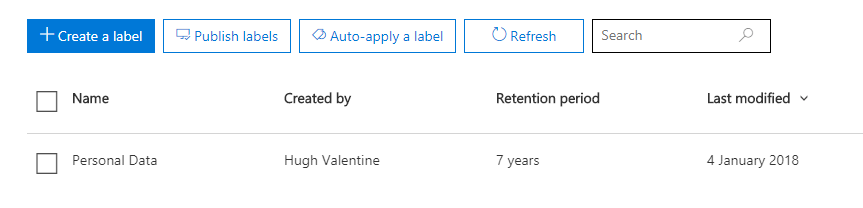
We can then configure the settings to carry out automatic actions dependant on specific logic. This may be to ensure that certain documents are retain for a specific amount of time. If this was customer information we may need to delete the data after a specific time.

Once we have created our labels we can then start applying them to our document libraries within SharePoint. We can either bulk apply a label to every document or specifically choose a label for individual documents.
In the example below these two documents have been labelled as “Personal Data” meaning the documents cannot be deleted for 7 years in accordance to the labels rules we have created.

2. Security – Multi Factor Authentication
We have all heard horror stories about businesses being “hacked” or “Cyrptolocked” which is essentially when someone gains access to your IT infrastructure and maliciously damages your data or holds it to ransom.

Unfortunately, this type of attach is becoming increasingly popular as the hacking software is now readily available to purchase to attack businesses. Often businesses only take the threat seriously once they have been attacked and forced to pay on average between £4,000 – £10,000 or lose all their data.
There are multiple things businesses can do to protect their server environments but often forget about securing Office365 from potential hack attacks.
The best way to prevent something terrible happening to your data in Office365 is to prevent the hacker ever being able to get into your system. To this you will need to enable “Multi Factor Authentication” for all your users.
This means whenever one of your users logs into Office365 they must also authenticate from another device such as their mobile phone. This can be achieved with:
- A code texted to the user.
- A phone call that requires the user to press a number.
- An app on their phone that requires them to press “Approve” when prompted for authentication.
This ensures that a hacker cannot use an employee’s account to login unless they have that employees mobile phone which is highly unlikely.
Multi Factor Authentication can also consider where the user is logging in from. This means your users may only be required to Multi Factor Authenticate when logging in remotely which is anywhere other than the office, as hackers will be trying to login remotely.
3. Collaborate on documents with real-time co-authoring
Gone are the days of waiting for a colleague to complete their section of a document your team I am collaborating on before you can work on the document. No more backwards and forward emails with different versions of the teams document. When you and your colleagues want to collaborate on a document, you can use real-time co-authoring to see everyone’s changes as they happen.
As you can see in the example below, you will be able to see who is editing the document and in real-time what they are typing into the document.
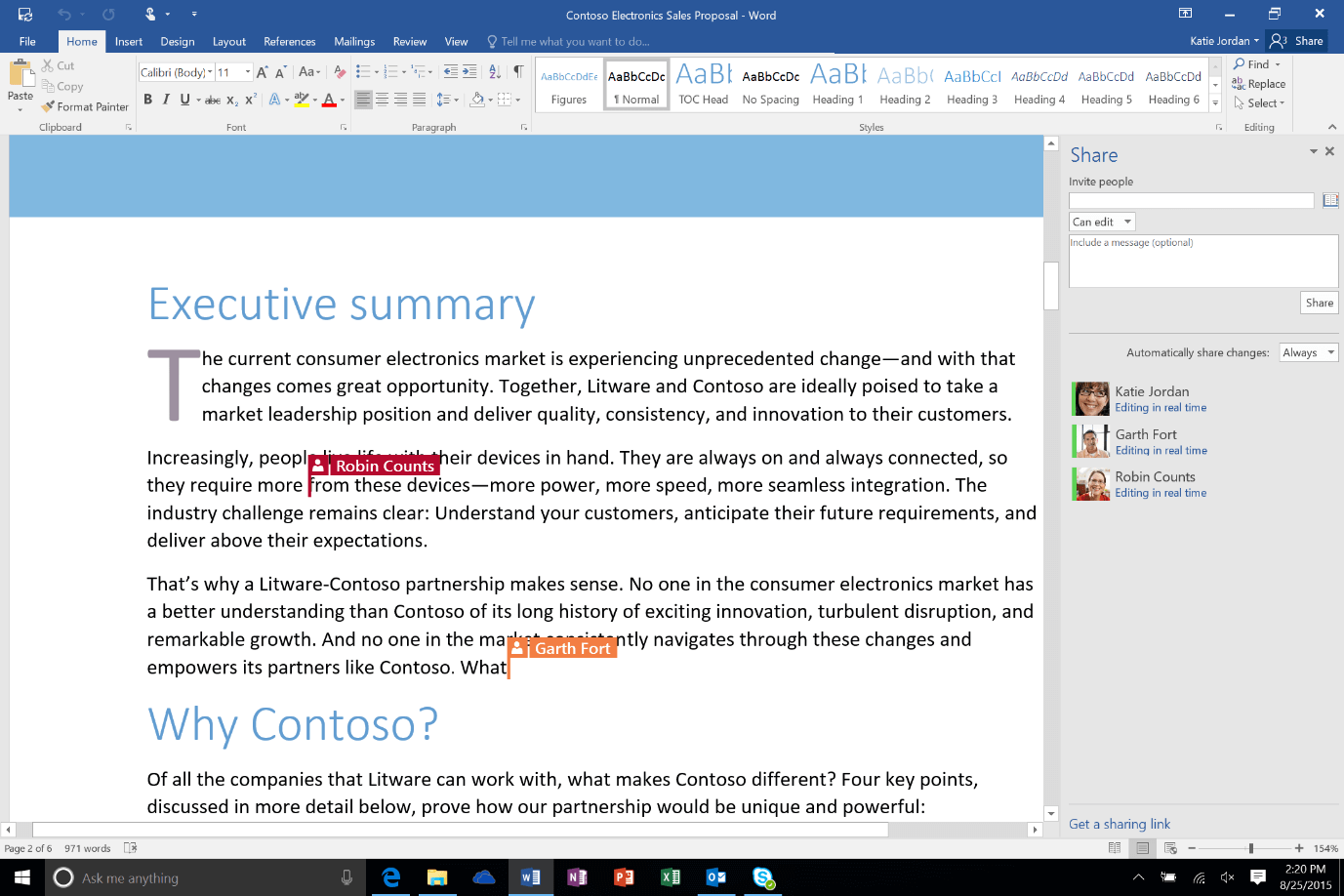
Co-Authoring Collaboration is a simple three step process:
- Upload the document you wish to collaborate on into a shared document area such as OneDrive or SharePoint Online, so others can work in it.
- You invite people to edit it with you, so they receive an email with a shortcut URL to access the document.
- When they open and work in the document in Word 2016, Word Online you will see each other’s changes as soon as there are typed into the document.
4. Extranet – Free External Users
Business often need to collaborate and securely store documents with external parties such as suppliers, consultants or customers. Previously this would be a difficult process to manage which would often evolve third parties emailing copies of documents back and forward into shared mailboxes.
However, by enabling the external sharing features within SharePoint Online your company can quickly configure a SharePoint “Extranet” which is an online portal that third parties can log into and upload/download any documents that are required.
You do NOT have to pay for external user’s licenses. It is free for external third parties to access you Office365 tenant.
This could be used for a customer portal that allows your customers to download your latest product materials or even a supplier’s portal that allows third parties to upload documentation for a procurement process.

5. O365 Video – Microsoft’s Answer To YouTube
Office 365 Video is a great video streaming product within Office365. It offers a YouTube style portal where users in your organization can post and stream videos.
It’s an excellent place to share videos of company-wide communications or recordings of tutorials, meetings, inductions, or training sessions.
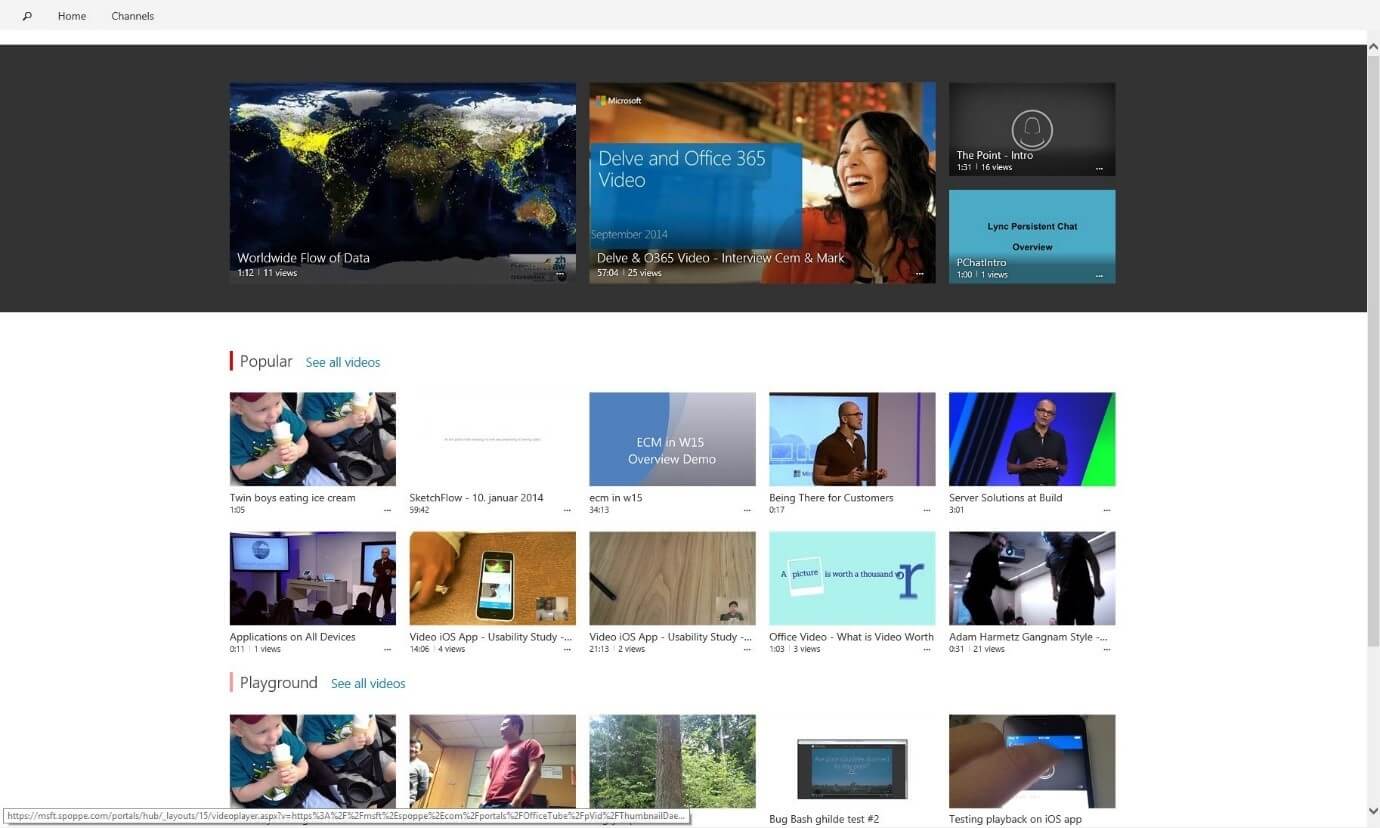
Office 365 Video allows you to produce collections of videos which is useful if you are creating a training course. Video displays a thumbnail image of each video on the site. You just select a thumbnail to view a video or use the search functionality for relevant content.
6. Do not attach files, link to them instead
If your usual way of sending a document to a colleague is by sending it as an attachment in an email this can lead to issues of document duplication and colleagues having different versions of the same document.
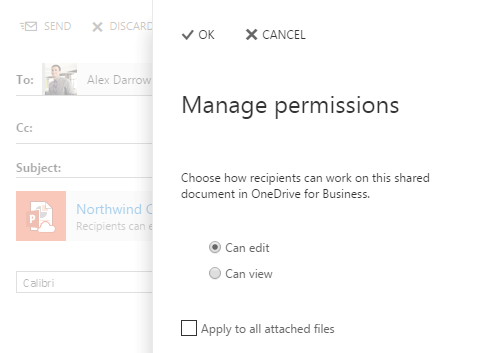
To eliminate this issue happening you can send a link to the file instead. This will appear to the end user just like an attached document. However, instead of them having a copy version they will have a link directly to the original document.
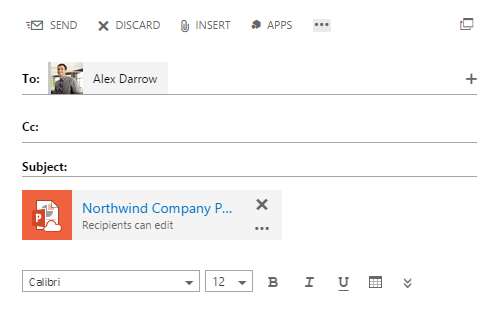
When you use OWA to share files stored on OneDrive for Business, recipients in the To: and Cc: lines automatically are given permission to view and edit the file. But it’s also easy to change the permissions on the file directly from the email message.
7. Office365 Form integration with SharePoint Online
Office365 Forms is a product you may already be aware of to create basic forms, surveys and questionnaires. However, it was noted by Microsoft that is don’t work very well being a standalone product. Taking that onboard Microsoft announced at the end of 2017 that they will be integrating Forms into SharePoint Online.
They will be making it easier to integrate Office365 products such as Forms, Power BI, PowerApps. This means instead of interacting with these products individually Microsoft will be rolling out new web parts for each product to create a seamless experience for end users within a SharePoint Online intranet.

8. Flow “Send for review” in every SharePoint library
For those who have yet to use this product, Flow is Office365’s workflow designer which will eventually be the successor of SharePoint Designer.
SharePoint has always had “Out of the box” workflows and had the ability to create more complex workflows with SharePoint Designer.
Before Flow can truly take over from SharePoint based workflows it must re-create the “Out of the box” workflows that have previously be available for SharePoint lists and library’s.
It was announced at the end of 2017 that Microsoft intend on rolling out a basic “Send for approval” Flow.

Microsoft are building a basic send for review flow into every SharePoint library, so you don’t have to custom build one. Users can route a file to another user for feedback and review. Built with Microsoft Flow and integrated with the Flow approval centre, signoff Flows are trackable in SharePoint as well as the Flow admin consoles.
9. Flow Launch Panel – Manual Start Button
On the topic of Flow improving its functionality to include options that have been available through SharePoint Designer, it has been announced that a “Launch Panel” will be added to lists and library’s using Flows.
This means you will be able to start a flow manually through a button on the ribbon rather than using triggers such as “on item creation” or “item modified”, but these automatic triggers will still be possible.
It was also announced that a user can pass values from an item into the Flow before it is triggered.

In our example above, a “Request new equipment” flow might ask you to select a desktop, laptop, or a tablet, and send that selection to the team responsible for handling the request. You are prompted to enter information in a panel that opens directly inside a list or library.
10. SharePoint List – Column Formatting
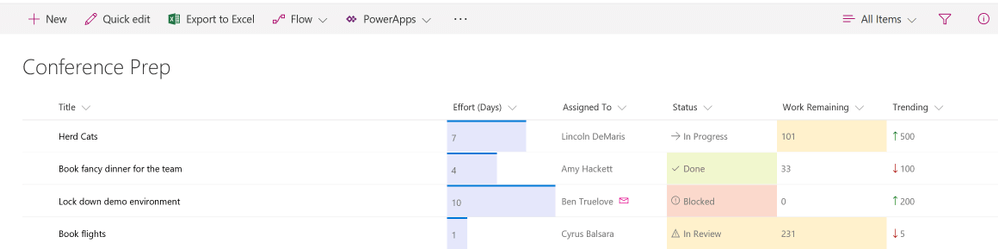
SharePoint lists can be tailored to support almost any content or business solutions need. But until recently it has not been possible to format columns.
Microsoft have recently introduced new, low-code capabilities that open custom formatting. This can be used to show RAG Status, Conditional formatted colours or icons, KPI, and much more.
Author
| |
Dougie Wood
SharePoint Specialist |
| T: 03335 779 009 E: [email protected] W: https://valto.stg.upliftcro.co |
|
| 10 Watergate Row, Chester. CH1 2LD |
For many organisations, the main reasons for adopting a cloud hosting solution for SharePoint are the cost effectiveness and reliability that is offered when compared to legacy on-premises hosting solutions or traditional datacentres.
Unfortunately, many businesses do not get the performance enhancements that they expect when migrating their SharePoint hosting to Azure. This is usually due to mistakes in the architecture process that lead to insufficient resource being used.
Proper Planning Prevents Performance Problems
Prior to any migration of SharePoint to Azure, it is essential to conduct a thorough review of the existing solution you are using. This involves auditing the specification of all aspects of the hosting including all the application and database servers, as well as the connectivity in and out of your data centre.
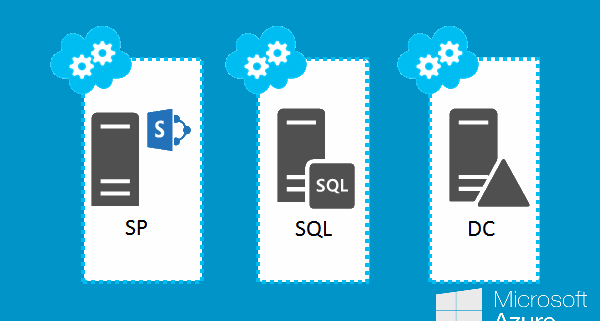
In some cases, a SharePoint cloud deployment is simply configured at the basic recommended levels rather than considering the specific needs of an organisation. While this may save money on your existing hosting, it can also create massive performance issues if the existing solution is more powerful.
One reason for this approach is that Azure makes it so simple to deploy an off the shelf SharePoint farm straight from the dashboard. While some configuration is still required, it is often overlooked and needs are not thought through. This leads to an unsatisfactory outcome for staff.
Valto’s approach is to fully audit the performance and requirements of your organisation through analysis of log files. This informs us about the number of connections that are required and the likely throughput of data and server requests that need to be accommodated. We provide a full service that is designed to complement your IT Strategy.
Once this review has been conducted, it is important to review the current hosting arrangements that you have. In some cases, existing solutions may be over-engineered – more powerful than is needed to handle the application. This may be because of previous planning which sought to ensure that the solution deployed would be futureproof by building in additional capacity.
Given that Azure offers more flexibility than traditional data centre solutions, over capacity is not essential – the specification of the farm can be managed in real time – adding capacity when required and scaling back at other times if necessary – this reduces costs.
Similarly, if the existing farm is under-specification, then a plan can be put in place to architect a solution that is in keeping with current needs along with a roadmap for additional capacity as required.
Ongoing Support and Analysis
As noted above, a key reason why legacy systems can appear expensive is that they are often over-engineered to provide future proofing. This is not necessary with Azure and SharePoint, as the virtual machines can be altered as required. This means that ongoing support is essential.
Regular audits of usage levels will help to ensure that the correct range of machines to meet your business’ SharePoint requirements are in place as required.
Find out More
For more information about Valto’s approach or to talk to one of our qualified Azure Consultants about hosting SharePoint in Azure, please call us on 0207 240 1440.
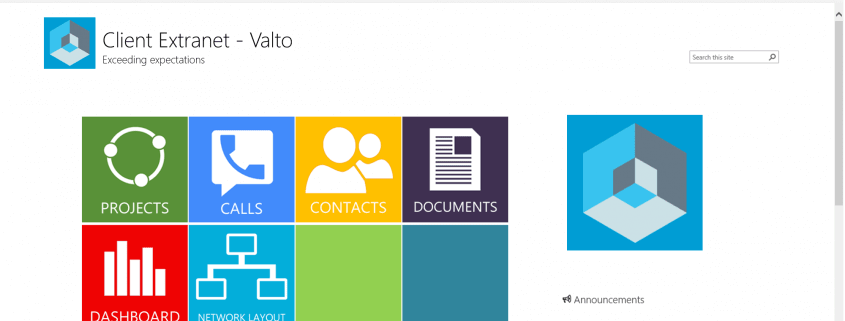
In the past, SharePoint was primarily seen just as a platform for collaboration – largely because of its integration into the rest of the Microsoft Office Productivity Suite, however with the addition of custom development and the flexibility that it offered, it also became a popular choice for a company’s intranet solution.
With SharePoint Online, there is even more integration with both Azure as a platform and Office365. This coupled with the collaboration tools offered in the latest Office Applications makes SharePoint an even more powerful tool for making a workforce more productive. A further benefit of the architecture of SharePoint online is the adoption of an App based model for extending functionality.
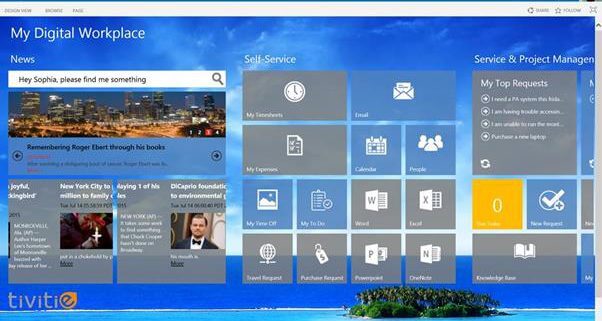
While previous versions of SharePoint could be extended with added functions to support services such as Holiday Bookings or Expense Management, these needed to be developed and integrated into SharePoint. It was possible for SharePoint development companies to deploy a preconfigured intranet type solution “out of the box”, however this was usually a one size fits all solution that required substantial additional work to configure the intranet to work as required.
With the newer App based model, the extra services are de-coupled from SharePoint, which means that they are easier to install and maintenance becomes more straightforward – a patch for SharePoint will not break connections or end functionality with an app as they sit separately.
The availability of SharePoint apps to handle much of the extra functionality that businesses require makes the management of an Intranet more straightforward and allows companies to get what they want more easily.
Adding Social features to a SharePoint Intranet
One of the biggest challenges for an organisation adopting a SharePoint Intranet is to encourage staff to use it. There are some core functions that all staff will need to use – booking holidays or working together – but for the intranet to fulfil its potential, it’s essential that staff use it as a means of sharing information with their colleagues.
Integrating Yammer and Skype within SharePoint can be done using the app model – this encourages staff to communicate via the intranet. As more content is shared and organised through the Intranet, it becomes a more important part of workflow within the business, and this – coupled with the ability to manage a user’s profile as part of an internal social network makes it a more user-friendly environment that provides real value for all staff.
Single Sign On
Perhaps the biggest advantage of choosing SharePoint online as an intranet platform alongside Office 365 is the integration of a single user identity across the different applications. A user no longer needs to sign in to multiple applications to do different things – they can access their stored documents, manage their HR and training, and communicate with colleagues. With SharePoint Online and Office 365, this is functionality that requires little custom development, whereas a third-party platform would require substantial development time to integrate.
Find out More
If your organisation is planning to update your intranet, need reliable SharePoint Support or you’re considering an Office 365 Migration and want to find out more about the benefits of integration that SharePoint brings, please contact a member of our team on 03335 779 009 and we’ll be happy to help you.
Choosing SharePoint as a platform for collaboration within your organisation can require substantial investment as it is tailored to meet your needs. Whether you need bespoke development or large-scale configuration changes, there will always be a requirement for some customisation. As with any major IT strategy investments, there is a need for the project to deliver some commercial outcome for the business – whether this is increased efficiency; better data management; or simply a streamlined process of communication. Increasing SharePoint adoption within your organisation drives success. With more people using the platform, you will get more of the benefits that it can bring.
Challenges in increasing SharePoint Adoption
A challenge for businesses when they move to SharePoint is encouraging adoption amongst staff within the business. There are many reasons why staff may not adopt SharePoint within a business. In some cases, this is related to a lack of understanding of what the platform offers – that can often be cured with training; in other cases, moving to SharePoint represents a major change in the working patterns that people have and they resist it. Finally, there are people who view SharePoint as a threat – they may feel that the increased access to productivity information may be used against them by management or that targets will increase.
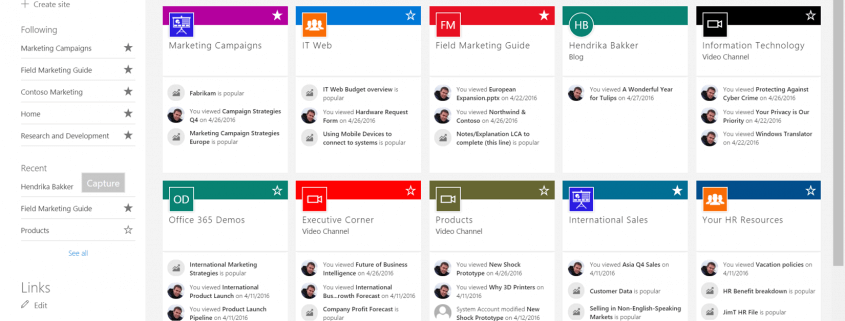
Whether you are moving to SharePoint for the first time, or are increasing the use that it has within your business, it is important to consider an adoption plan as part of your roadmap to ensure that the value of your investment is maximised. At Valto, we have worked with businesses to help increase adoption of the platform and focus on several areas to soften the change and make it easier for staff to understand the benefits. We can do this through training and workshops where key stakeholders will be provided with the materials to drive change deeper into the business.
We focus on the key benefits of SharePoint when tailored to your organisation – this means that any information is real world and specific to your staff and how the development of the platform will benefit them.
Reducing Duplication of Effort
One of the biggest benefits of a fully collaborative working environment is that staff can simplify the process of working together to complete a task. Traditionally, if multiple staff were working on the same document you would run into issues with version control or duplication of work. With in-line collaboration through SharePoint and Office 365, staff can clearly see what others are working on and avoid duplication. This makes them more efficient and enables work to be completed faster. With a SharePoint Intranet that supports collaboration, you will help staff work better together.
Improving Collaboration and File Management
Traditionally, businesses would use a shared drive to give staff access to content. The drawback of this would be that a shared drive doesn’t allow staff to work on the same document at the same time – which leads to problems with version control.
Using SharePoint’s built in tools for collaboration and approval saves time and effort for staff and simplifies the management of files to ensure that there’s only one correct version and that all changes are recorded and properly attributed. When staff become aware of the benefits, increasing SharePoint adoption will help to drive wider usage among holdout staff.
Improving Process Management
Changes in process can be a problem with teams due to inertia. The introduction of SharePoint into a workplace often results in changes to process as approval systems and efficient workflows are brought in.
Planned processes do increase efficiency, but there can be resistance to them if the perception is that the old way was better.
Including staff in the workshops for planning how SharePoint will be used is the most effective way of ensuring that the new workflows will be accepted and the benefits of more structured processes within your organisation can be felt.
Improving Access to Information
Even with a structured, hierarchical file management system in place, it can be difficult for staff to find the content that they’re looking for in a timely way. Demonstrating the effectiveness of SharePoint’s search functionality to staff provides them with a demonstrable benefit instantly and can be a key factor in increasing SharePoint adoption.
Summary
To drive increasing SharePoint adoption in your business, the most important thing you need is buy in from staff. If you are seen to be imposing a new system without demonstrating the benefits that come from it, resistance and low adoption can be the outcome.
Providing training to staff and getting staff in each team to volunteer as champions to lead the process of rollout to staff helps enormously. Involving them in the development process is also necessary to get as many people on board with the project as possible.
The main driver for adoption through is ensuring that the applications built in Microsoft SharePoint are properly designed to meet the specific needs of your teams. If the project is not fully thought through, or executed badly, or if performance is a problem, it creates a negative impression of the platform and stifles usage.
Talk to a member of the Valto team about how we can help with the process of increasing SharePoint Adoption in your business and how our approach to development makes a difference to end user satisfaction. Call us today on 03335 779 009 .
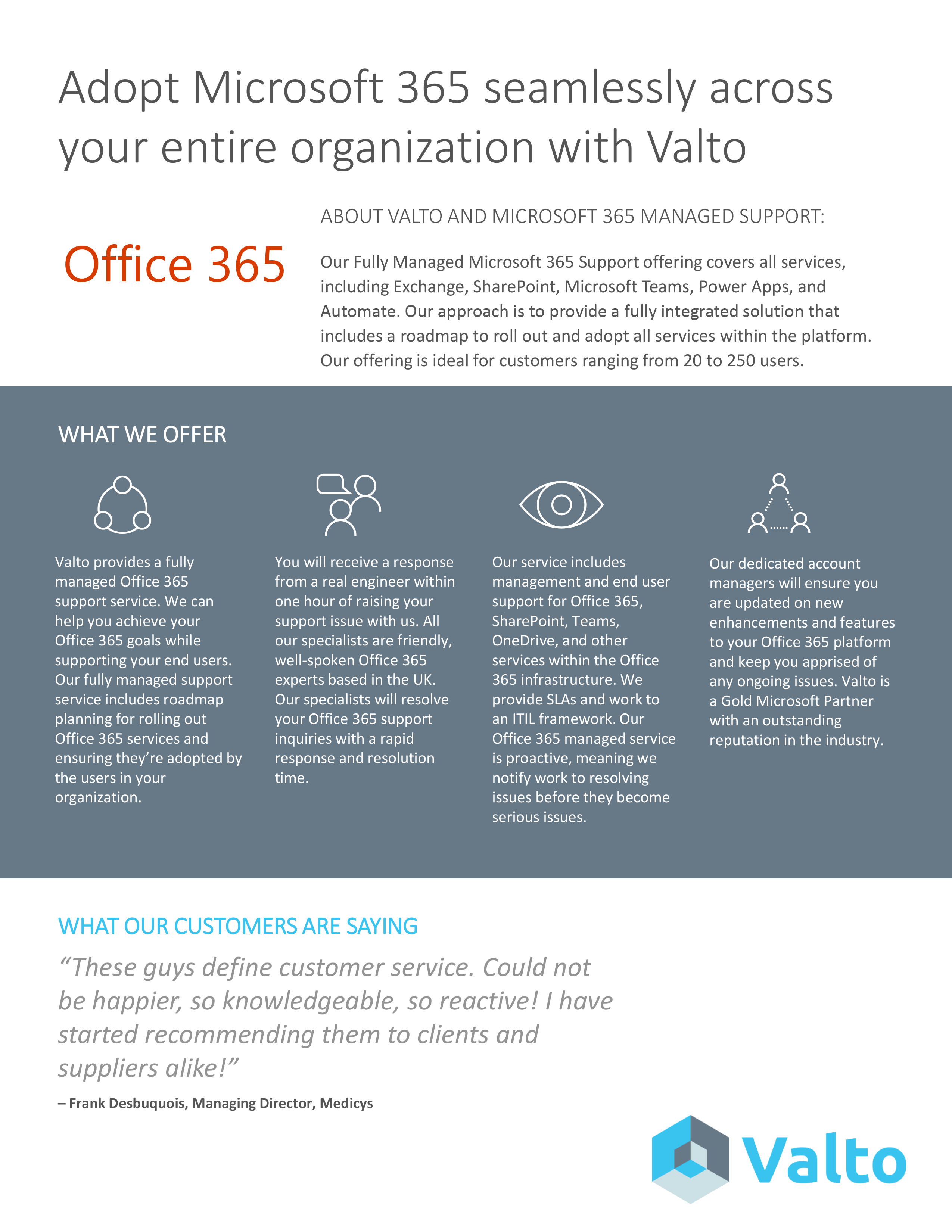
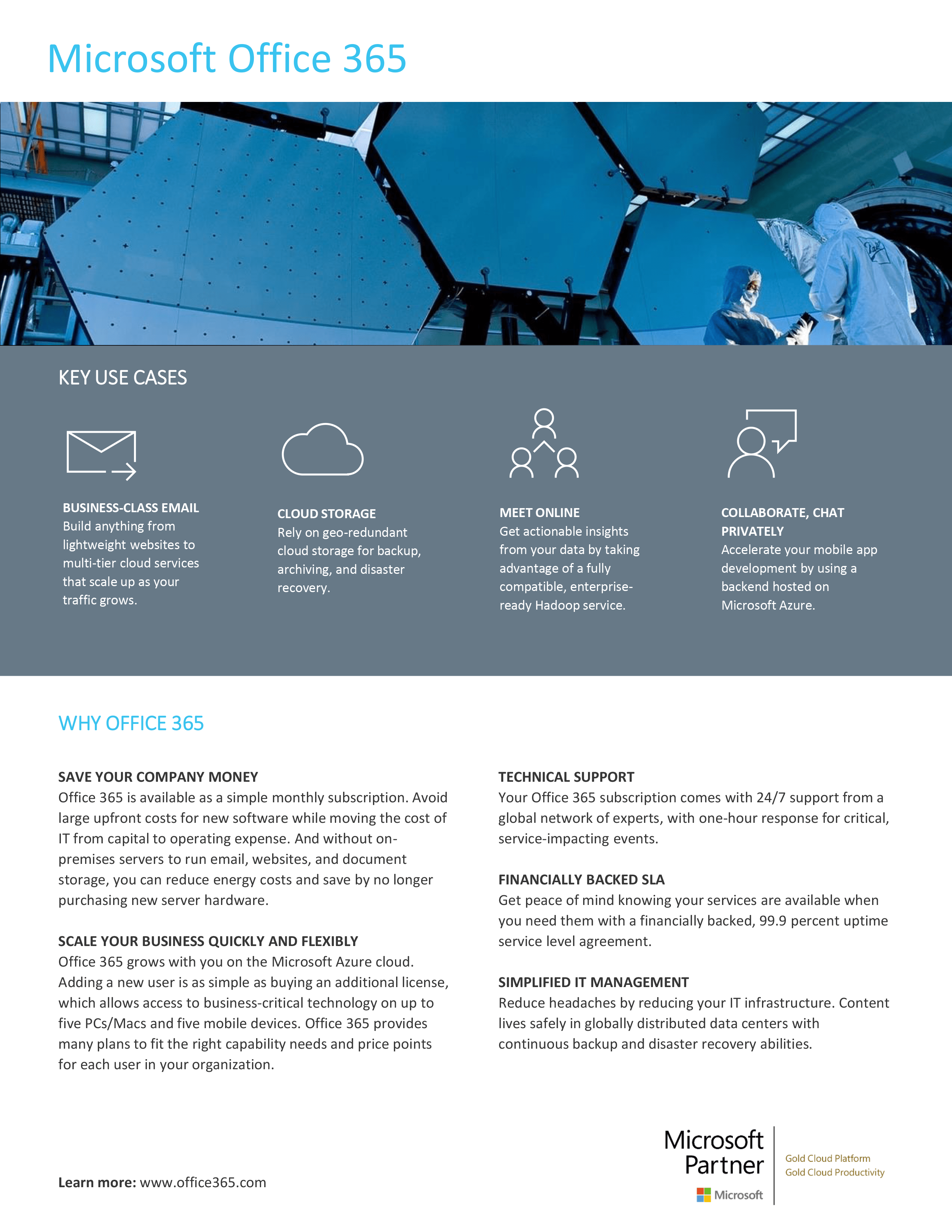
The Complete Office365 Adoption Guide
We have put together the best Office365 adoption guide for free download.
 UK Offices
Chester:
8 Hunters Walk, Canal Street
Chester, CH1 4EB
Southampton:
Royal Mail House, Terminus Terrace
Southampton, SO14 3FD
London:
Kemp House, 152 – 160 City Road
London, EC1V 2NX
 US Office
North Carolina:
5540 Centerview Dr Ste 204 PMB 38792 Raleigh, 27606-8012



Company no: 10625574. VAT no: 264817775. All Rights Reserved. Services Sitemap | XML Sitemap